
Default Tenda Rourer Login
If your Wi-Fi feels slow, unstable, or just not performing the way it should, a Tenda router can make a huge difference. Known for their simplicity and high performance, Tenda routers give you complete control over your home or office network from the Tenda login page.
Accessing the Tenda admin panel allows you to manage everything that keeps your network running smoothly. You can boost speed, tighten security, change your Wi-Fi password, set up guest networks, manage bandwidth, and adjust advanced settings with ease. It gives beginners the confidence to handle basic tasks and gives tech-savvy users the flexibility they need for detailed customization.
Before logging in, you’ll need your router’s default IP address, username, and password, along with a connection from your device to the router via Wi-Fi or an Ethernet cable. Once you’re connected, you’re ready to take complete control of your network and optimize it the way you want.
How to Log In to 192.168.0.1 (Step-by-Step)
Step 1: Connect to the Tenda Network
Before anything else, make sure your device is connected to the Tenda router. You can connect in two ways:
• Through Wi-Fi
• Through a LAN cable for a more stable connection
Step 2: Open a Web Browser
Use any browser you prefer. Standard options include Chrome, Firefox, Safari, and Edge.
Step 3: Enter the Tenda Router IP Address
Type one of the default Tenda IP addresses into the browser’s address bar:
• 192.168.0.1
• 192.168.1.1
• 192.168.2.1
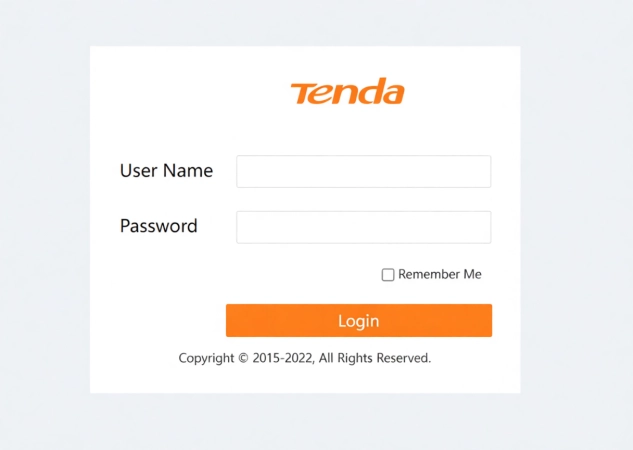
Press Enter to load the login page.
If the page doesn’t open, check the label on the back or bottom of your router to confirm the correct IP address.
Step 4: Enter the Default Tenda Login Credentials
When the login screen appears, enter the default username and password. Common combinations include:
• admin/admin
• none/none
Some newer Tenda models may not require a password on first login and instead prompt you to create one during setup.
If the login page still doesn’t load, try restarting your router, clearing your browser cache, or switching to a different device.
Step 5: Access the Tenda Admin Dashboard
Once logged in, you’ll reach the Tenda admin control panel. Here you can manage key settings such as:
• Connected devices
• Wi-Fi name and password
• Guest network options
• Basic and advanced configurations
Step 6: Make and Save Changes
After adjusting any settings, look for the Save or Apply button to confirm the changes.
Sometimes the router will reboot after applying new settings. This is normal and ensures the new configuration takes effect.
If your changes don’t apply, try refreshing the page, reconnecting to the network, or manually rebooting the router.
Default Tenda Login Details (IP, Username, and Password)
Most Common Tenda Default IP Addresses
These are the default IP addresses used by most Tenda routers. One of them will take you to the login page.
• 192.168.0.1
• 192.168.1.1
• 192.168.2.1
• tendawifi.com as a web-based alternative
Default Tenda IPs and Credentials with Usage Percentages
Usage % | Default IP Address | Username | Password |
82% | none | none | |
67% | 192.168.2.1 | admin | admin |
31% | 192.168.2.1 | admin | (blank) |
9% | admin | admin | |
2% | 192.168.0.1 | none | none |
This provides a quick snapshot of the IP addresses most commonly used across Tenda models and the frequency with which each login pair appears.
How to Find Your Router’s Correct IP
If the default IPs do not work, you can identify your router’s actual login address using any of the following methods:
Check the router label
Most Tenda routers have a sticker on the bottom or back showing the IP address, default username, and password.
Check your device network settings.
Look for the value listed under “Default Gateway.” This is your router’s IP.
• Windows: Network Settings
• macOS: Network > Advanced > TCP/IP
Use the Command Prompt method
On Windows, open Command Prompt and type:
ipconfig
The “Default Gateway” value is the IP address of your router.
Use the alternative domain.
Instead of typing the IP manually, you can also try visiting:
tendawifi.com
This automatically redirects many models to the correct login interface.
Forgot Login Password? Resetting Your Tenda Router
If you can’t remember your login password or the default credentials aren’t working anymore, resetting the router is the quickest way to regain access.
Where the Reset Button Is
Most Tenda routers have a small reset button on the back or bottom panel. It’s usually inside a tiny pinhole.
How Long to Hold It
Use a pin, SIM tool, or paperclip to press and hold the reset button. Keep it pressed for about 10 to 15 seconds until the router lights blink or the device restarts.
What Gets Erased
A reset returns the router to its factory settings. This removes:
• Custom Wi-Fi name and password
• Admin password
• security settings
• Guest networks
• Any advanced configurations you set up
Post Reset security Recommendations
After logging in, update your settings to keep the network secure. It’s best to:
• Set a strong, unique admin password
• Change the Wi-Fi name and password
• Disable remote access if you don’t need it
• Recreate your guest network if you use one
Logging In Again with Default Credentials
Once the router restarts, open a browser and enter the default IP address. You can now log in using the original username and password, such as:
• admin/admin
• none/none
How to Change the SSID (Wi-Fi Name) on a Tenda Router
Why You Should Customize the SSID
Changing the default Wi-Fi name offers a few critical benefits:
Security
A unique SSID makes your network harder to identify, reducing the chance of unwanted access.
Easy Identification
Personalizing the name helps you quickly spot your network, especially in crowded areas with many Wi-Fi signals.
Step-by-Step Process
Log in to your Tenda router using the default IP address and your admin credentials.
Once inside the dashboard, open the Wireless Settings section.
Look for the SSID (Network Name) field.
Enter the new Wi-Fi name you want to use.
Save or apply the changes.
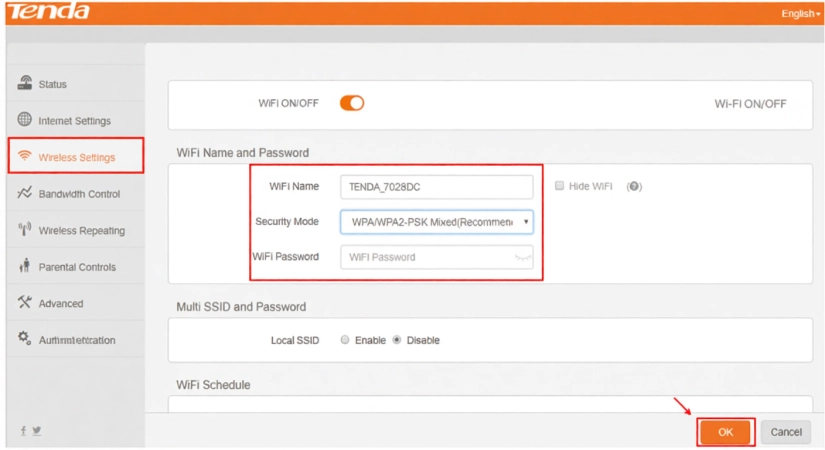
After the update, your router may reboot, and all devices will disconnect.
Reconnect to the network using the new SSID you just created.
How to Change the Tenda Wi-Fi Password (Improve security)
Why Updating Your Password Matters
Changing your Wi-Fi password regularly keeps your network safe and organized.
Unauthorized Access Prevention
A strong password protects your internet connection from neighbors, unknown devices, and potential attacks.
Better Device Management
Updating your password helps you control who stays connected and removes devices you don’t recognize.
Steps to Change the Tenda Wi-Fi Password
Follow these steps to create a new, secure password for your Tenda router:
- Log in to your Tenda router using your browser and the default IP address.
- Open the Wireless Settings section inside the admin dashboard.
- Make sure the security Mode is set to WPA or WPA2-PSK, which is recommended for strong protection.
- Find the password field and enter a new Wi-Fi password. Aim for at least eight characters with a mix of letters, numbers, and symbols.
- Save or apply the changes so your router can reboot and update the password.
- After the reboot, reconnect your devices using the new password.
Complete Guide: Setting Up and Configuring a New Tenda Router
Physical Setup
Start by preparing your Tenda router for its first-time installation.
• Connect the router to your modem using the provided Ethernet (LAN) cable.
• Plug in the power adapter and turn on the router. Wait for the indicator lights to stabilize.
Access the Setup Wizard
Once the router is powered on, open any web browser and go to one of the following addresses:
• 192.168.0.1
• tendawifi.com
This will open the initial setup wizard, where you can begin configuring your connection.
Choose Your Internet Connection Type
The router will ask you to select your connection type. Choose the option that matches your ISP:
• Dynamic IP
• Static IP
• PPPoE
If you’re unsure which one applies, check your ISP’s installation guide or contact their support.
Create Your Wi-Fi Name and Password
Next, set up your wireless network.
• Choose a unique Wi-Fi name (SSID).
• Create a strong password with at least eight characters.
• Select WPA2 or WPA3 security Mode if your router supports it for better protection.
Apply Settings and Reboot
After entering your details, confirm the configuration. The router will save your settings and may reboot automatically. Once it restarts, your new Wi-Fi network will be active.
Router Placement Tips
To ensure your Wi-Fi performs at its best, place your router in an ideal spot:
• Position it in a central location for even coverage.
• Keep it visible and free from walls or significant obstacles.
• Avoid placing it near microwaves, cordless phones, or other appliances that can cause interference.
Popular Tenda Router Models with Features and Specifications
Tenda offers a wide range of routers for home users, gamers, and office networks. Below is a detailed table covering the most popular models, including their Wi-Fi standards, speeds, and key features.
Tenda Router Models Overview
Model | Wi-Fi Standard | Speed / Bandwidth | Notable Features |
AC6 | Wi-Fi 5 (802.11ac) | Up to 1167 Mbps | MU-MIMO, dual-band support, Tenda app control |
AC7 | Wi-Fi 5 (802.11ac) | Up to 1200 Mbps | Long-range coverage, easy setup, beamforming |
F3 | Wi-Fi 4 (802.11n) | 300 Mbps | Budget-friendly, ideal for basic browsing |
N301 | Wi-Fi 4 (802.11n) | 300 Mbps | Simple setup, secure home networking |
AC10 | Wi-Fi 5 (802.11ac) | Up to 1200 Mbps | Gigabit ports, Beamforming+, VPN support |
RX12 Pro | Wi-Fi 6 (802.11ax) | AX1800 | High performance, Gigabit WAN/LAN, mesh compatibility |
TX12 | Wi-Fi 6 (802.11ax) | AX1800 | Low-latency, fast dual-band speeds, OFDMA support |
RX27 Pro | Wi-Fi 6 (802.11ax) | AX3000 | High-gain antennas, MU-MIMO, WPA3, strong coverage |
MW3 (Mesh) | Mesh Wi-Fi / AC1200 | Up to 1200 Mbps | Whole-home mesh, seamless roaming |
MW5G (Mesh) | Mesh Wi-Fi / AC1200 | Up to 1200 Mbps | Stable mesh performance, expanded coverage |
MW6 (Mesh) | Mesh Wi-Fi / AC1200 | Up to 1200 Mbps | Covers large homes, intelligent routing |
BE5100 | Wi-Fi 7 | Multi-gigabit | Wi-Fi 7 performance, 2.5G WAN, EasyMesh |
TE6L Pro | Wi-Fi 7 | High-speed dual-band | Latest-gen Wi-Fi, low-latency, advanced security |
Tenda Wi-Fi Extender Login and Configuration
Why Extender Login Fails
If you’re unable to access your Tenda extender’s setup page, it’s usually caused by one of these common issues:
Not connected to the extender’s Wi-Fi
Your device must be connected to the extender’s network, not the primary router.
Mobile data interfering
Phones sometimes switch to mobile data, blocking access to the extender’s login page.
Same SSID confusion
If your extender uses the same Wi-Fi name as your router, your device may stay connected to the wrong network.
Solutions to Fix Login Issues
Try these fixes to access your extender’s dashboard:
- Connect to the extender’s Wi-Fi, typically named Tenda_EXT.
• If the extender has an Ethernet port, connect directly using a LAN cable for a stable login session.
• Turn off mobile data to prevent automatic switching during setup.
Log in Through the Tenda App
Some Tenda extender models support app-based configuration.
- Download the Tenda WiFi app from the app store.
- Open the app and let it search for the extender.
- If required, bind the extender to your account.
- Enter the management password to begin configuration.
Login Through IP Address
If you prefer browser login:
- Open your primary router’s admin page and check the list of connected devices to find the extender’s assigned IP address.
- Enter this IP address in your browser to access the extender’s setup page.
Troubleshooting Common Tenda Router Issues
Cannot access the Login Page
If you’re unable to open the Tenda login screen, it’s usually due to one of these causes:
Not connected to the router
Make sure your device is connected to the Tenda Wi-Fi or plugged in with a LAN cable.
Wrong IP address
Check the router label and try the correct address, such as 192.168.0.1, 192.168.1.1, or tendawifi.com.
Browser issues
Clear your cache or switch to another browser if the page still doesn’t load.
Connected but No Internet
If Wi-Fi shows “connected” but nothing loads:
Incorrect ISP settings
Your connection type or credentials may be entered incorrectly.
Restart the router and the modem
Power-cycle both devices to refresh your network.
Outdated firmware
An old firmware version can cause internet drops or no connectivity. Update it from the admin panel.
Slow Internet Speed
Common reasons for sluggish performance include:
Too many devices connected
Disconnect devices you don’t need to free up bandwidth.
Poor router placement
Walls, furniture, or corners can weaken your signal.
Use a LAN cable for demanding tasks.
Wired connections offer more stable and consistent speeds.
Update firmware
Keeping your router updated ensures better performance.
Wi-Fi Keeps Disconnecting
If your connection drops frequently, check for:
Overheating
Place the router in an open, ventilated area.
Interference
Microwaves, TVs, and nearby routers can disrupt signals.
Change the Wi-Fi channel or password.
Switching channels or updating your Wi-Fi details can reduce interference.
Reset if necessary
If nothing works, a factory reset can fix persistent issues.
Forgot Router Password
If you can’t log in:
Perform a hard reset
Press and hold the reset button for 10 to 15 seconds.
Log in with default credentials.
Use admin/admin or none/none depending on your model.
No Internet Light on Router
When the internet indicator is off:
WAN cable not connected
Check the cable from the modem to the router’s WAN port.
ISP issue
Sometimes the problem lies with your provider.
Contact your ISP
If the light stays off after rebooting your devices, reach out to your service provider.
Additional Helpful Resources
If you need support beyond Tenda, here are a few guides and tools that can help you manage other networks and router brands.
A commonly referenced address used in parental controls and network pause features. Helpful for learning how timed restrictions work on certain routers.
A valuable reference for default IP addresses, usernames, and passwords across different router manufacturers.
• PLDT – Learn how to access the PLDT admin dashboard and configure fiber modem settings.
• Globe – Step-by-step instructions for Globe at Home router login and Wi-Fi management.
• Converge – Default gateway access and setup assistance for Converge routers.
• Smart Bro – Login guide for Smart Bro pocket Wi-Fi and home routers.
Frequently Asked Questions
How do I update my Tenda Wi-Fi password?
Log in to the router dashboard, open Wireless Settings, find the password field, enter a new password, and save. The router will reboot.
Where is the Tenda configuration page?
You can access it by entering 192.168.0.1, 192.168.1.1, or tendawifi.com in your browser.
How do I fix the Tenda Wi-Fi not connecting?
Restart the router, check ISP settings, update firmware, and make sure your device is connected to the correct SSID.
How to log in using 192.168.1.1?
Connect to the router, type 192.168.1.1 in your browser, and enter the default username and password to access the admin panel.
What is the default Tenda username?
Most models use admin, while some use none or leave the field blank.
How do I manually connect to a Tenda Wi-Fi network?
Open your device’s Wi-Fi settings, select your Tenda network name, enter the password, and connect.
How to check connected devices?
Log in to the admin dashboard and look for the Connected Devices or Device List section.
How to enable guest Wi-Fi?
Open Wireless Settings in the dashboard and enable Guest Network. Set a name, password, and any needed limits.
How to update Tenda firmware?
Go to the System Settings or Firmware Upgrade section, check for updates, and install the latest version.