Globe At Home Router Login
The Globe At Home login is your gateway to managing everything about your home internet connection. Whether you’re using a Globe Fiber, DSL, or LTE router, accessing the router’s admin dashboard lets you take complete control of your WiFi network. This is where you can customize essential settings, including your WiFi password, network name (SSID), connected devices, security options, and more! All from one central dashboard.
Being able to log in to your Globe At Home router isn’t just a technical extra; it’s an essential step in keeping your network secure, stable, and tailored to your needs. From boosting your WiFi performance to safeguarding your home from unauthorized access, the router admin page empowers every Globe user to manage and optimize their internet experience with ease.
Best Practices Before Logging In
- To avoid failed logins and ensure smooth access:
- Make sure your device is connected to the Globe network (WiFi or LAN).
- Use a stable connection to prevent login timeouts.
- Double-check the IP address, avoid mistyped versions like 192.168 l 254.254.
- If someone changed the admin password, ask the person who configured the router, or reset it if necessary.
If this IP doesn’t work for your secondary router, try the TP-Link router login method.
Step-by-Step Guide: How to Log in to Globe At Home Router
Logging in to your Globe At Home router gives you complete control over your home network. You can easily update your WiFi password, manage devices, improve security, and customize your connection. Follow the steps below to access your router’s admin dashboard.
Step 1: Connect Your Device to the Globe WiFi Network
Make sure your device is connected to your Globe At Home WiFi network or connected through a LAN cable. If you are not on the Globe network, the login page will not open.
Step 2: Open Your Preferred Web Browser
Use any modern browser, such as:
- Google Chrome
- Mozilla Firefox
- Microsoft Edge
- Safari
All of these work well with Globe router interfaces.
Step 3: Enter the Default Globe Router IP Address (192.168.254.254)
Type the default Globe router IP into the address bar:
Press Enter and wait for the login screen.
If the login page does not load, check the router label because some models use a different default gateway.
Step 4: Enter the Default Username and Password
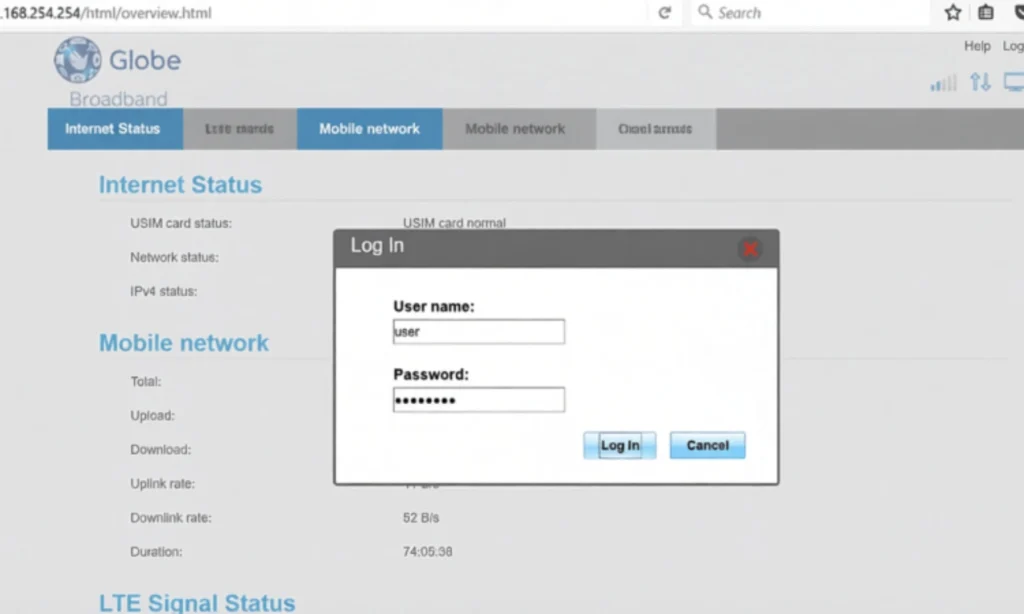
You will now see the login screen. Enter the credentials printed on the sticker at the back or bottom of your Globe modem.
Common default login combinations include:
- Username: admin or user
- Password: varies by model (examples: @l03e1t3, admin, tattoo@home)
If you changed your admin password before and forgot it, you may need to reset the router to restore default settings.
Step 5: Access the Router Dashboard and Start Managing Settings
After a successful login, you will be taken to the Globe At Home admin dashboard, where you can:
- Change your WiFi name (SSID) and password
- Monitor or block devices.
- Improve your network security.y
- Update firmware
- Set parental controls
- Configure firewall, MAC filtering, and port forwarding
Check the 10.0.0.1 admin page to fix general router problems and configure your Wi-Fi.
Globe At Home Default Login Details
Most Globe At Home routers use similar default login details, but the exact username and password can vary based on the router model and firmware version. The table below provides an updated overview of the most commonly used Globe router credentials. These details help you access the router dashboard quickly and manage your network settings without confusion.
|
Router Type |
Default IP |
Username |
Password |
Notes |
|
Globe At Home Prepaid |
admin |
admin |
Usually printed on the router label |
|
|
Globe Fiber and Broadband |
192.168.254.254 |
user |
user |
May vary depending on firmware version |
|
Huawei Globe Routers |
192.168.254.254 |
admin |
admin |
Sometimes uses user or user1234 |
|
ZTE Globe Modem |
192.168.254.254 |
user |
user |
Try admin and admin if the default fails |
|
Globe Custom Admin Units |
192.168.254.254 |
admin |
Custom password |
The default password is printed under the router |
How to Change Your Globe WiFi Password and Network Name (SSID)
Updating your WiFi name and password is one of the simplest and most effective ways to protect your home network. The Globe At Home dashboard makes it easy to customize these settings to improve both security and performance.
Why Changing Your WiFi Name and Password Matters
Changing your default WiFi name and password reduces the risk of unauthorized users connecting to your network. Customized settings help you:
- Improve network security
- Prevent neighbors or unknown devices from connecting.
- Avoid slow speeds caused by an unrecognized user.s
- Create a stronger and more memorable WiFi identity.
- Protect children and sensitive devices on your network.
A unique SSID and a strong password keep your connection stable and secure.
Step-by-Step Instructions via Router Dashboard
Follow these steps to update your Globe At Home WiFi details:
- Connect your device, such as a laptop or phone, to the Globe At Home WiFi network.
- Open a browser like Chrome, Safari, Firefox, or Edge.
- Type http://192.168.254.254 in the address bar and press Enter.
- Log in with your router username and password. These are usually printed on a sticker under the router.
- Go to Network, then WLAN Settings, then Advanced.
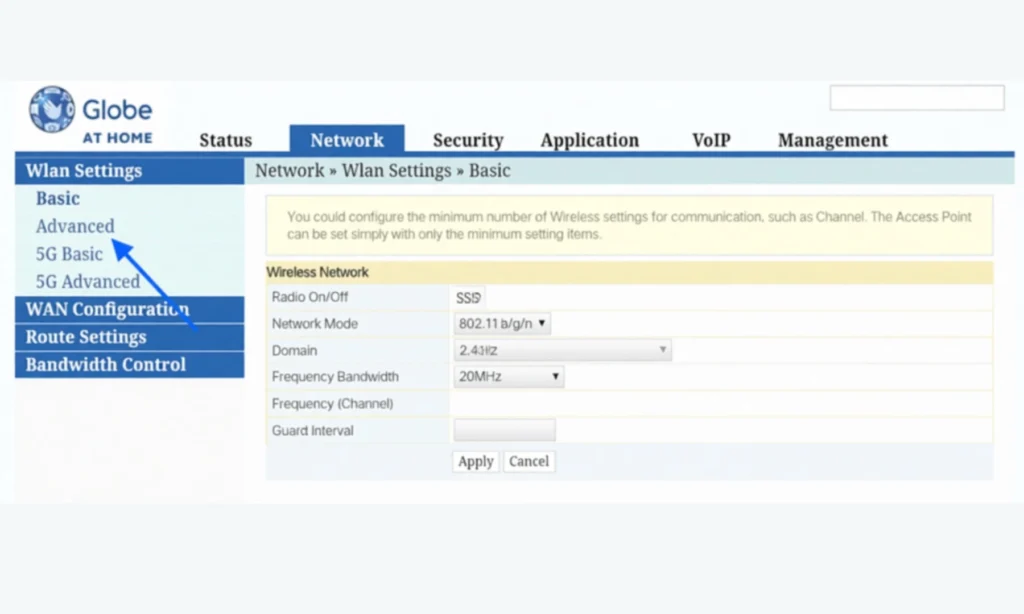
- Enter your preferred WiFi name in the SSID Name field.
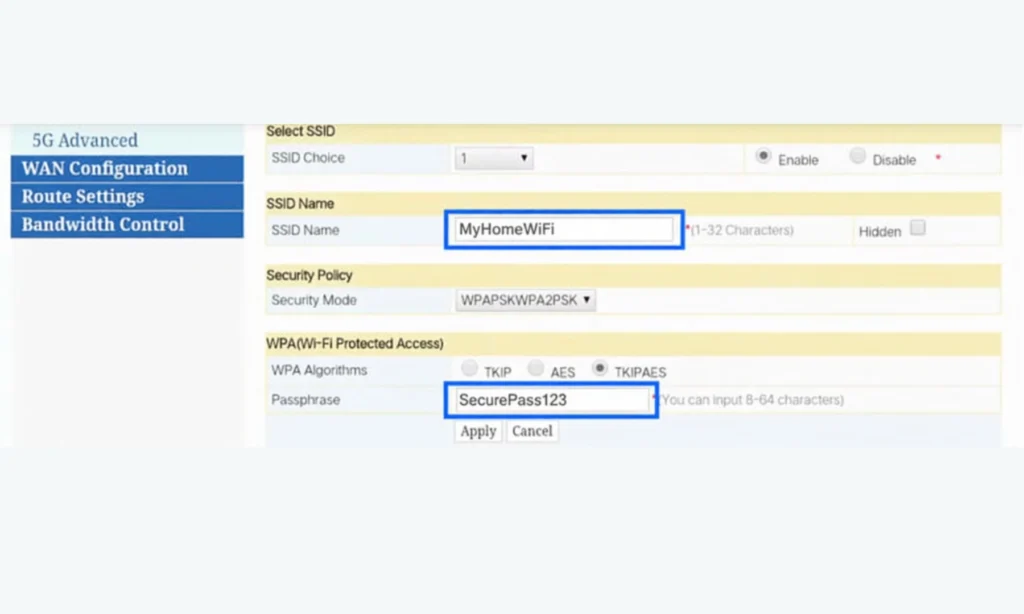
- Set security Mode to WPA2/WPA/WPSK.
- Select TKIPAES as the WPA Algorithm.
- Type your new WiFi password in the Passphrase field.
- Click Apply or Save to update your settings.
- Reconnect your devices using the new WiFi name and password.
For some Globe Prepaid WiFi models, these settings can be found under Advanced and Wi-Fi Basic Settings instead.
Recommended Settings for Better Speed and security
To keep your connection secure and running smoothly, use the following recommended settings:
- Use a strong password with at least 12 characters
- Combine uppercase and lowercase letters, numbers, and symbols.s
- Avoid personal information in your SSID
- Use WPA2 or WPA3 security available.le
- Enable 5 GHz WiFi for faster speeds when you are close to the router.
- Keep 2.4 GHz enabled for more exhaustive coverage.
- Update router firmware when available
How to Access Globe At Home Prepaid WiFi Login
Globe At Home Prepaid WiFi works differently from Fiber and Broadband units, so prepaid users often get access to features that are not available on traditional postpaid routers. This guide explains those differences and walks you through the exact steps to access the prepaid router dashboard.
Differences Between Prepaid and Fiber or Broadband Routers
Prepaid users can check their load balance directly inside the dashboard
Data usage monitoring is built in.
Promos like SURF, HOMESURF, or GOSURF are visible inside the interface.
Reloading options appear inside the dashboard.
Firmware menus are usually simplified.
No monthly billing info is shown because the service is pay-as-you-go.
Admin privileges may be more limited than Fiber units.
These features make prepaid routers ideal for budget-conscious users and for households that want complete control over usage.
Features Exclusive to Prepaid Users
Real-time load balance checking
Usage and data consumption trackers
Promo registration buttons
Load history
Quick reload shortcuts
Bandwidth monitoring
Device limit controls for preventing data waste.
Login Steps
Follow these steps as if you were viewing on-screen instructions.
Step 1: Connect to Your Globe Prepaid WiFi
Make sure your phone, laptop, or PC is connected to the Globe Prepaid WiFi network.
Step 2: Open a Web Browser
Launch Chrome, Firefox, Edge, or Safari.
Step 3: Enter the Default IP Address
In the address bar, type:
http://192.168.254.254
Press Enter to open the login page.
Step 4: View the Login Screen (Screenshot Style Preview)
You should see a simple login box with fields for:
- Username
- Password
Step 5: Enter Your Prepaid Router Credentials
Most prepaid routers use:
- Username: admin
- Password: admin
Check the sticker under the router for the login details.
Step 6: Access the Prepaid Dashboard
Once logged in, you will see the prepaid control panel, where you can:
- Check load balance
- Monitor remaining data
- Register promos
- Change the WiFi name and password.
- Limit devices
- View usage history
These tools help you manage your prepaid internet more efficiently.
Incorrect or Mistyped IP Addresses Users Commonly Enter
Many Globe users struggle to access the router login page due to simple typing mistakes when entering the IP address. The correct login IP is 192.168.254.254, but minor typing errors can prevent the page from loading. Below is a list of the most common incorrect formats along with the correct version.
List of Wrong IP Formats and the Correct Version
Mistyped IP Address | Correct Version | Why the Mistake Happens |
192.168.1.254.254 | 192.168.254.254 | Extra numbers added by accident |
192.168 l.254.254 | 192.168.254.254 | The letter “l” is typed instead of a dot |
192.168.1.254 | 192.168.254.254 | A valid IP used for other routers, but not Globe |
192.168 l 254 254 | 192.168.254.254 | Spaces and the letter “l” are used instead of dots |
192.168254.254 | 192.168.254.254 | Missing a dot between octets |
192.168.254 | 192.168.254.254 | Incomplete IP address |
These incorrect formats often lead users to think the router is broken, even when it is simply a typing error.
Why These Typos Happen and How to Avoid Them
Most IP address errors come from small mistakes in spacing or punctuation. Here are the most common reasons:
- Mobile keyboards automatically insert spaces
- The lowercase letter “l” resembles the number “1.”
- Users confuse Globe’s IP with common router IPs like 192.168.1.254
- Dots are forgotten or placed in the wrong positions.
- Fast typing leads to repeated numbers or missing digits.
To avoid these issues:
- Type the IP address slowly and carefully
- Double-check that you used dots instead of spaces.
- Avoid copying IP addresses from screenshots that use stylized fonts.
- Always confirm the IP printed on your router sticker
Quick Fixes when Globe Router Login Not Working
Login issues are common with Globe At Home routers, and most of them can be fixed in a few minutes. Below are the most common problems users encounter and the correct solutions for each.
Wrong Username or Password
Entering the wrong login credentials is one of the most common reasons users cannot access the router dashboard. This usually happens when:
- The admin password was changed earlier
- You are using the wrong default login format.
- The label on the router is unclear or damaged.
How to fix it:
- Check the sticker under the router for the correct username and password.
- Type the credentials slowly and make sure the uppercase and lowercase letters match exactly.
- If you changed the password previously and forgot it, perform a factory reset to restore the default login details.
Login Page Not Opening or Not Loading
If the login page does not load, the issue is usually related to your connection.
Possible causes:
- You are not connected to the Globe WiFi or LAN
- You are using mobile data instead of the router’s network.
- The IP address was mistyped.
How to fix it:
- Connect directly to the Globe WiFi network.
- Turn off mobile data on your phone.
- Reenter the correct login IP: 192.168.254.254.
- Restart your browser or try a different one.
Stuck on the Login Page or the Page Keeps Refreshing
This problem happens when the browser cache interferes with the loading process or when extensions block scripts.
How to fix it:
- Clear your browser’s cache and cookies.
- Try opening the login page in private or incognito Mode.
- Disable unnecessary browser extensions.
- Switch to another browser if the issue continues.
Router Not Responding or No Lights
If your router has no lights or is not responding, it may be experiencing a temporary glitch, a power issue, or a hardware failure.
How to fix it:
- Unplug the router from the power outlet.
- Wait 10 to 15 seconds.
- Plug it back in and wait for the indicator lights to stabilize.
- Check if the power adapter is loose or damaged.
- If the router still shows no lights, it may need servicing or replacement.
Reset Button Not Working
If the reset button does not seem to work, the most common reasons include improper pressing or using the wrong tool.
How to fix it:
- Locate the small reset hole on the router.
- Use a paperclip, SIM tool, or pin to press it firmly.
- Hold the button for 10 to 12 seconds until the lights blink.
- Wait for the router to reboot completely.
- Try logging in again using the default credentials.
How to Factory Reset Your Globe At Home Router
A factory reset restores your Globe At Home router to its original state. This process is appropriate when you cannot access the admin dashboard, you have forgotten your login password, or your router is experiencing serious connection issues.
When to Use a Factory Reset
A factory reset is recommended in the following situations:
- You forgot the admin username or password
- The WiFi password is unknown, and you cannot connect.
- The router login page keeps failing to load
- The router behaves abnormally or disconnects frequently.
- You want to remove all custom settings.
- You need to fix configuration errors caused by previous changes.
A reset brings the router back to the exact state it was in when first installed.
Step-by-Step Instructions
Follow these instructions carefully to reset your Globe At Home router:
- Locate the reset button on the back or bottom of the router.
- Use a pin, paperclip, SIM ejector tool, or similar pointed object.
- Press and hold the reset button for 10 to 15 seconds.
- Wait for the LED lights to blink or turn off temporarily.
- Release the button and let the router fully reboot.
- Wait for the power, WiFi, and broadband lights to stabilize.
- Connect your device to the default WiFi network name printed on the router label.
Once the reset is complete, you can log in using the default username and password provided on the router sticker.
What Settings Return to Default
A factory reset erases all custom configurations, including:
- WiFi name (SSID)
- WiFi password
- Admin username and password
- Firewall settings
- MAC filtering rules
- Port forwarding and DMZ settings
- Custom DNS settings
- Device restrictions
- Parental control settings
- Any advanced configuration changes
After resetting, the router behaves like a brand-new unit, and you can set it up again from scratch.
Essential security Tips for Globe Router Users
Keeping your Globe At Home network secure is essential for protecting your data, devices, and privacy. The following security practices help prevent unauthorized access and keep your connection safe.
Change Default Admin Credentials Immediately
Default admin usernames and passwords are easy for attackers to guess. Change your router’s admin login credentials as soon as you access the dashboard.
Use a unique admin password, different from your WiFi password.
Use Strong WiFi Encryption (WPA2 or WPA3)
Make sure your router is using WPA2 or WPA3 encryption in the wireless settings. These security protocols protect your network traffic and make it harder for intruders to intercept your data.
Disable WPS for Better Protection
WPS allows quick connections, but it is also known to be vulnerable. Turn it off in your router settings to avoid potential security risks.
A manual connection using a password is much safer.
Limit Device Access and Remove Unknown Devices
Regularly check the list of connected devices in your router dashboard.
Remove or block any device you do not recognize.
Limiting the number of allowed devices also helps maintain better speed and stability.
Enable MAC Filtering (Optional)
MAC filtering gives you control over which devices can connect to your WiFi.
You can add approved devices to an allowed list so that only those devices can access your network.
Use this feature if you want higher control over connections.
Keep Firmware Updated
Router updates often fix bugs and security weaknesses.
Check for firmware updates in the router settings or through the manufacturer’s website.
Keeping your firmware up to date ensures your router stays protected against the latest threats.
Turn Off Remote Management If Not Needed
Remote management lets people access the router from outside your home network.
If you do not need this feature, turn it off for extra safety.
This prevents external login attempts and keeps your admin page accessible only from inside your home.
Advanced Settings Globe Users Can Explore
Once you are comfortable with the basic Globe At Home router settings, you can explore several advanced options that give you greater control over network performance, security, and device management. These features are optional but very useful for users who want a more customized internet experience.
Bandwidth Control and quality of service
Bandwidth control and Quality of Service (quality of service) settings allow you to manage how your internet speed is distributed across devices.
You can:
- Prioritize certain devices
- Allocate more speed to gaming or streaming.
- Reduce bandwidth for background devices.
- Prevent network slowdowns during peak hours.
These settings help keep your connection balanced and stable.
Guest WiFi Network Setup
A guest network creates a separate WiFi connection for visitors.
Benefits include:
- Protecting your main devices from outside access
- Keeping your home network private
- Limiting guest device speed and usage
- Avoiding password sharing for your primary WiFi
This is ideal for homes with frequent visitors or shared living spaces.
Firewall Settings
Your router firewall protects your network from unauthorized access.
In the firewall menu, you can:
- Block suspicious IP addresses
- Control incoming and outgoing traffic.
- Set internet access rules.
- Customize protection levels
Adjusting firewall settings helps strengthen your overall security, especially if you use smart home devices.
Port Forwarding and VPN Options
Advanced users can configure port forwarding or VPN features to enhance functionality.
Port forwarding allows you to:
- Host game servers
- Improve compatibility with gaming consoles.
- Access home devices remotely
- Run security camera systems or NAS devices.
VPN options allow you to:
- Route your home network through encrypted connections
- Protect privacy
- Access restricted apps or websites
- Improve security when working remotely.
These features should be used only if you understand the configurations or have specific use cases.
Frequently Asked Questions
What is the correct IP address for the Globe router?
The correct IP address for most Globe routers is 192.168.254.254. This is the page you use to access the admin dashboard.
Why can't I access 192.168.254.254?
This usually happens when you are not connected to the Globe WiFi network, the IP is mistyped, or your router needs a restart. Make sure you are connected to the correct network and enter the IP carefully.
What is the default Globe username and password?
Most Globe routers use admin or user for both the username and password. The exact details are printed on a sticker under the router.
How do I reset my Globe router without logging in?
You can reset the router using the physical reset button. Press and hold the reset button with a pin for 10 to 15 seconds until the lights blink.
Can I change my Globe WiFi password using the GlobeOne App?
Yes. Many Globe Fiber and prepaid routers allow you to change the WiFi password in the GlobeOne App. Look for the WiFi or modem settings inside the app.
How do I find my router's IP on Windows, Mac, Android, or iPhone?
- Windows: Open Command Prompt and type ipconfig. Look for the Default Gateway.
- Mac: Go to System Settings> Network> Advanced, then check the Router field.
- Android: Go to WiFi settings, tap your connected network, and check the Gateway.
- iPhone: Go to WiFi settings, tap the connected network, and look for Router.